
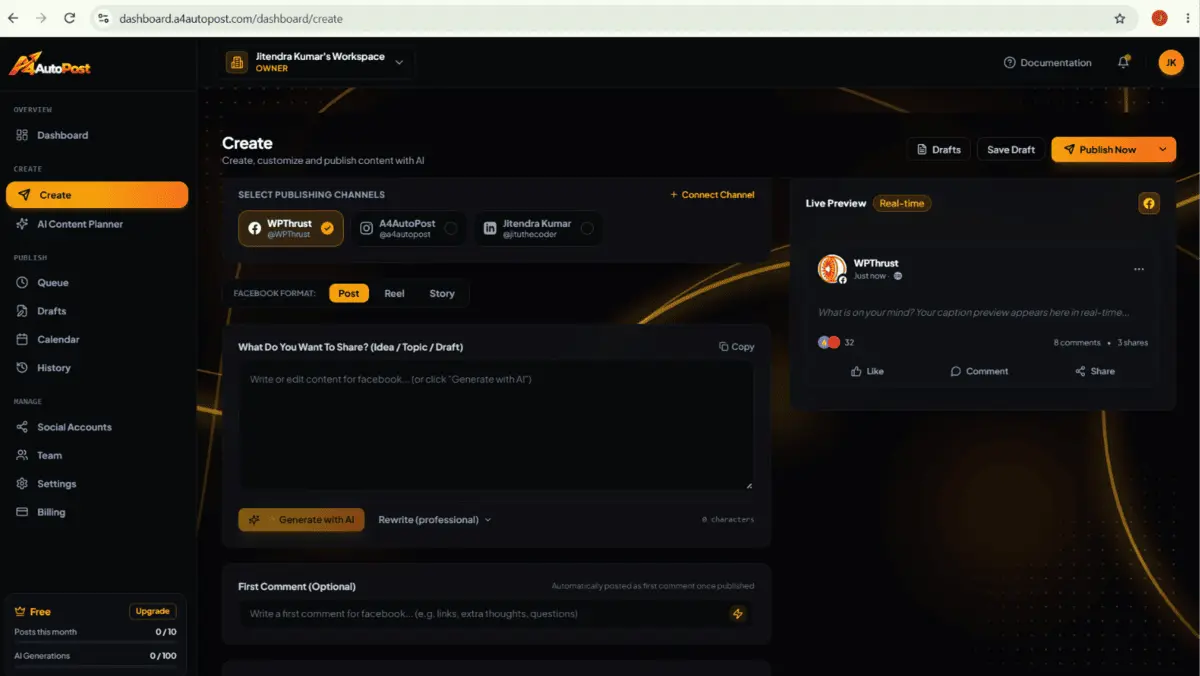
The process of maintaining a consistent Instagram presence when you have to create content, write captions, choose hashtags, and publish posts manually every day, it’s very difficult. A4AutoPost makes the entire process simplified.
What Does It Mean to Auto Publish on Instagram?
Auto publishing on Instagram means creating a post in advance and allowing a connected scheduling tool to publish it automatically at a selected date and time. The A4AutoPost lets you connect your Instagram account, create or upload content, write the caption, choose a schedule, review the post, and let the platform handle publishing.
Instagram auto-publishing workflows generally work with Instagram professional accounts, and supported content can include images, videos, Reels, and carousels.
This beginner’s guide walks you through the complete workflow. Connect your account, create an Instagram post, schedule it, enable auto-publishing, and review performance. The entire process is an easy piece of cake.
How We Tested A4AutoPost for Instagram
This guide is not a normal user review kind of stuff. I have tested A4AutoPost’s Instagram publishing workflow on 20th October 2026 using a Business Instagram account. We completed the full process from start to finish.
The process included connecting an Instagram account, creating a post, using AI assistance for caption ideas, selecting a publishing time, reviewing the preview, and scheduling the content for automatic publishing.
My goal was to test the process exactly like a beginner would use it. He might work on that without technical setup, coding, or complex workflow configuration.
What we verified: The post appeared on the connected Instagram profile at the scheduled time.
What we noticed during testing:
A4 AutoPost made the scheduling process straightforward once the Instagram account was connected. The most important step was reviewing the final preview before scheduling, because auto-publishing sends the approved version live at the selected time. For our test, the scheduled post was published as expected.
What Does Auto Publishing Mean on Instagram?
Auto publishing means preparing a post in advance and allowing a connected publishing tool and letting it take care of the rest. It is supposed to publish the post automatically at the time you choose.
- Manual publishing: You create and upload the post when it needs to go live.
- Scheduling: You prepare the post now and select a future date and time.
- Auto publishing: The approved post is published automatically at the scheduled time.
Automation removes repetitive publishing work, but it does not remove the need for strategy. The content review, and audience engagement, you need to do it on your own.
Why Use A4AutoPost for Instagram?
A4AutoPost brings the key parts of Instagram publishing into one workflow:
- Connect Instagram and manage it from a central dashboard.
- Create posts with AI assistance, including captions, hashtags, and content ideas.
- Schedule posts at recommended times or custom dates and times.
- Auto-publish approved content without returning to the dashboard at posting time.
- Track performance after publishing to improve future posts.
- Manage multiple platforms when you want to adapt content for other social channels.
Even the users have shared their experience with this tool.
Amazing experience. The perfect tool to manage caption on various social media platforms. Now I don’t have to waste time in boggling my mind on creating and distributing captions on different platforms.
It had made my life easy.
Source: Trustpilot
How to Auto Publish on Instagram With A4AutoPost
Just follow these simple steps to automate the entire post publishing process and make post management hassle free.
Step 1: Create Your A4AutoPost Account
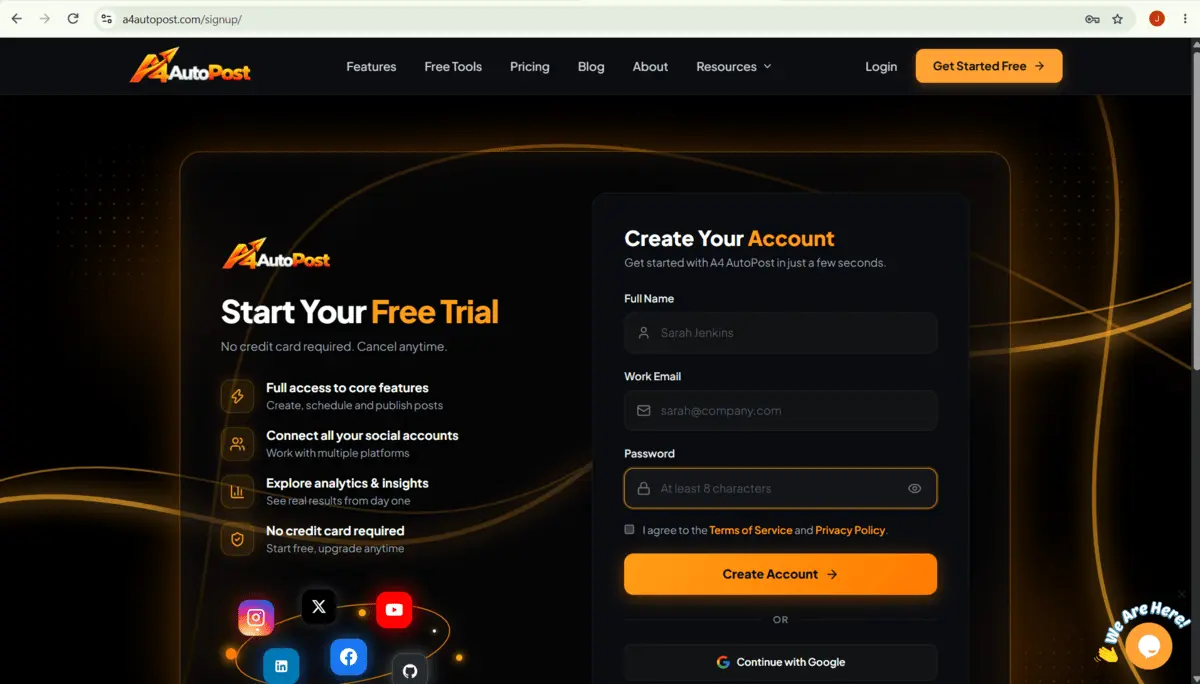
First of all, start by signing up for A4AutoPost. Open your dashboard and the tool follows a simple four-stage workflow. It connects channels, creates content, plans the calendar, and publishes automatically.
Before connecting Instagram, confirm that you have access to the correct business or creator account.
Step 2: Connect Your Instagram Account
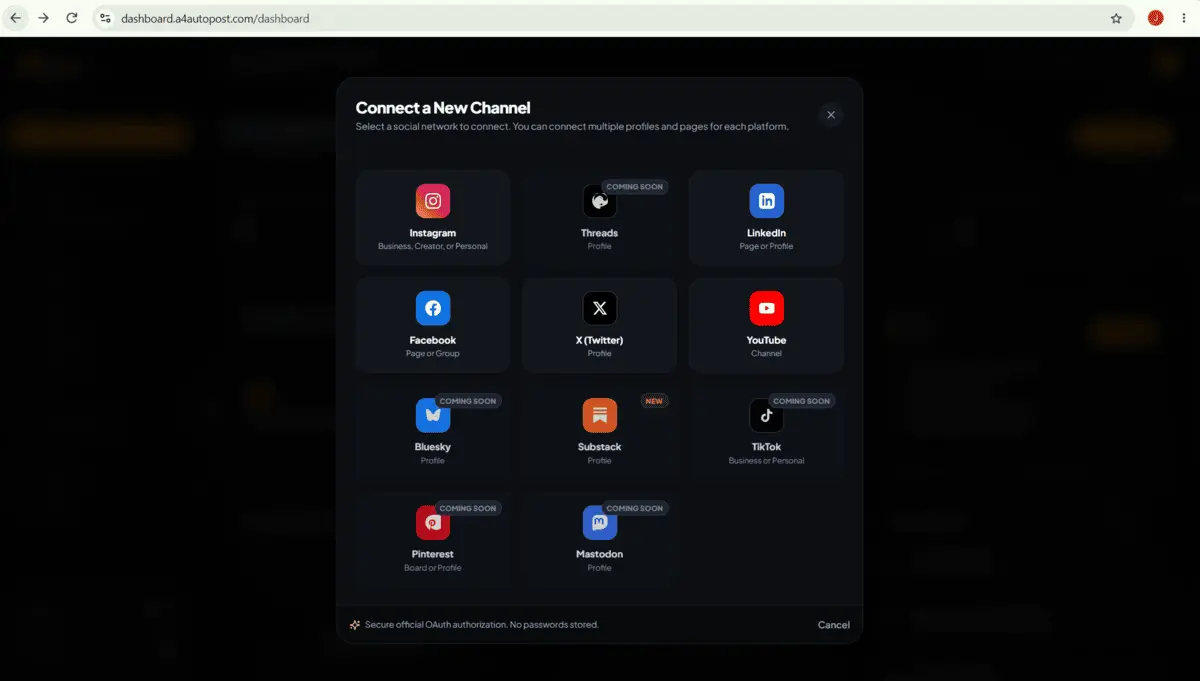
The second step is to go to the social accounts section and connect the Instagram profile you want to manage. This is the first step in A4AutoPost’s publishing workflow.
If you manage multiple brands or clients, use a clear workspace name. That makes it is easy to identify the right Instagram account later.
Step 3: Create Your Instagram Post
Next, you need to open the post creation area. Here add your media, such as an image, carousel, video, or Reel. Then write a caption that focuses on one clear objective.
You can use A4AutoPost’s AI tools to generate caption ideas, hashtags, and content suggestions. Make a review of every suggestion before using it, especially product claims, links, and brand-specific wording.
Quick caption checklist:
- Start with a strong hook.
- Focus on one main message.
- Add relevant hashtags rather than generic ones.
- Include a clear call to action.
- Check spelling, links, offers, and brand tone.
- Confirm the correct media is attached.
[Screenshot Placeholder: Instagram caption creation and AI writing tools]
Step 4: Review the Preview and Enable Auto Publishing
Before confirming the schedule, review the post preview carefully. Check the selected Instagram account, media, caption, hashtags, date, and time.
Once approved, A4AutoPost can publish the content automatically at the selected time.
Important: Automation publishes exactly what you approve. A final review helps prevent incorrect captions, outdated offers, or the wrong creative from going live.
[Screenshot Placeholder: Post preview and schedule confirmation screen]
Step 5: Select Instagram as the Publishing Channel
Choose Instagram as the destination for your post. If the content is also suitable for Facebook, LinkedIn, X, YouTube, or another connected platform, do one thing. Just adapt the caption and format rather than copying the same post everywhere.
This keeps each post aligned with the expectations of the platform where it is published.
[Screenshot Placeholder: Platform selection screen with Instagram selected]
Step 6: Schedule the Post
This is the crucial step. Select a custom date and time, or use the calendar to choose a publishing slot. A4AutoPost allows you to schedule posts at preferred times or select custom dates for each platform.
In my experience, the beginners should start with two or three Instagram posts per week. A manageable schedule is easier to maintain than trying to publish daily with rushed content.
[Screenshot Placeholder: Calendar scheduling screen showing selected date and time]
What You Still Need to Do Manually
A4AutoPost automates repetitive publishing tasks. However, it does not replace strategy or community management.
You still need to:
- Create or approve high-quality visuals.
- Review captions, claims, links, and offers before publishing.
- Respond to comments and direct messages.
- Monitor performance and adjust your content plan.
If you are looking to use A4AutoPost for Facebook you can go through our detailed guide to connect your Facebook account and manage a hassle free social media posting life.
When Not to Automate Instagram Posts
Some posts need real-time human control. You should avoid relying on automation for:
- Urgent product, service, or safety updates
- Breaking news or rapidly changing situations
- Live events
- Sensitive customer-service or crisis-communication posts
Common Instagram Auto Publishing Mistakes
When publishing using an automated approach there are still some common mistakes you can avoid.
- Scheduling posts without checking the final preview.
- Posting identical content across every platform.
- Treating automation as a replacement for audience engagement.
- Scheduling too far ahead without room for timely updates.
- Measuring success only through likes.
- Ignoring performance data after publishing.
Frequently Asked Questions
Can Instagram posts be published automatically?
Yes. Once you connect your Instagram account and approve a scheduled post, A4AutoPost can publish it automatically at the selected time.
Do I need to be online when the post is published?
No. After the post is scheduled and approved, A4AutoPost handles the publishing process at the chosen time.
Can I schedule Reels and carousels?
You can plan Instagram content formats supported by the platform. Confirm the specific format and account permissions in your A4AutoPost dashboard before scheduling.
Is auto publishing safe for business accounts?
It can be safe when you use official account connections, review scheduled content, and maintain access controls. A4AutoPost states that it uses secure OAuth 2.0 and API integrations for account connections.
Will automation improve engagement by itself?
No. Automation improves consistency and saves time, but engagement depends on content relevance, creative quality, audience fit, and active community management.
Final Takeaway
A4AutoPost makes Instagram auto publishing practical for beginners. It combines account connection, AI-assisted content creation, scheduling, automated publishing, and performance tracking in a single workflow. Use the automation to stay consistent, but keep human review and engagement at the center of your Instagram strategy.
Ready to save time on Instagram publishing? Create your first scheduled post with A4AutoPost.